Guides and tutorials · Guides and tutorials
Connecting a domain to your website: explained step by step

A domain connects an easy-to-remember web address to the technical services behind it. Your website needs DNS information, while hosting and email can remain with other providers.
This guide explains nameservers, A, CNAME and MX records, and the checks to make after a change. The exercise is only a local learning aid and does not change any real DNS data.
Understanding domains, websites and hosting
A domain is the readable address people enter in their browser. A website consists of files, content and features. Hosting provides the storage space and technical environment that make the website accessible. These three elements can be managed by different companies. Connecting them does not automatically change who owns the domain or website.
Your domain provider manages the registration and usually the DNS settings too. Your website platform or hosting provider explains which connection method it supports. Check both accounts first and establish who can approve changes. Business email may be with another, separate provider. The domain is therefore a shared reference point, but your website and email do not have to use the same service.
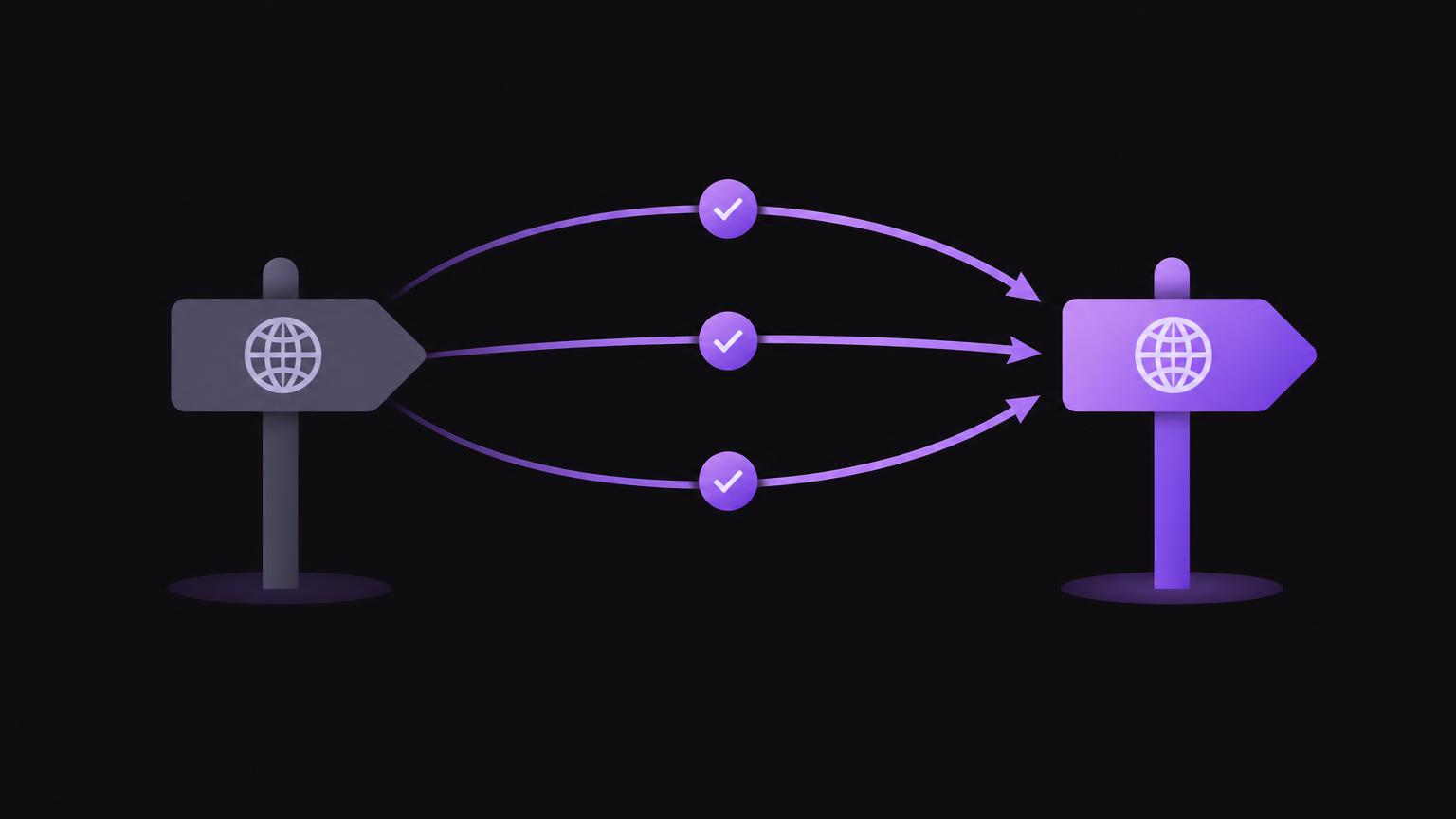
Connecting a domain is not the same as transferring it. When you connect it, registration stays with your existing provider; you adjust the technical signposts. A transfer moves management of the domain to another registrar and may require additional confirmation steps. Start with a connection if you only want the website to point to a new platform. ICANN explains DNS as part of the Domain Name System in its introductory guidance; check your registrar’s current help pages for its specific instructions.
What nameservers and DNS records do
DNS stands for Domain Name System. It translates names into technical destination information so browsers and mail servers can find the appropriate service. Nameservers hold the authoritative DNS data. They may be operated by your registrar, hosting provider or a specialist DNS service. If you change nameservers, management of the entire zone passes to the new service. All required records must then be present there.
An A record points a domain to an IPv4 address. An AAAA record can specify an IPv6 address. A CNAME record points one name to another, such as a platform hostname. Your website platform determines whether you need an A or CNAME record and which destination value to enter. Do not enter values from a generic example: providers use different destinations and may change their requirements.
| Record type | Purpose | Typical use | Important precaution |
|---|---|---|---|
| A | Points to an IPv4 address | Main domain, if required by the platform | Use only the destination value supplied by your provider |
| CNAME | Points one name to another | www or a platform subdomain name | Cannot be freely combined with other records at the same name |
| MX | Specifies the responsible mail servers | Receiving business email | Back up existing values before making changes |
| TXT | Stores text information for verification or email authentication | Domain verification, SPF or other requirements | Enter the content exactly as instructed |
Configuring the main domain and www correctly
A domain can be accessed with or without www. For example, example.ch and www.example.ch are technically separate names, even if visitors see them as the same website. Your platform may support both versions and designate one as the preferred address. Set up both names according to the platform’s current instructions. The non-preferred version should then redirect to the preferred address, where supported by the platform or website configuration.
Wix, for example, describes connecting by pointing on its help page; other platforms may use different terminology or requirements. The Wix guide to connecting a domain is therefore an example, not a universal DNS template. Do not use Wix values for another provider.
Record your preferred main address and test both versions after the change. For the basics of search visibility, also read about technical SEO.
Protecting business email and existing DNS data
Before making any changes, document your existing DNS zone or save an export from your provider. Pay particular attention to MX records, as they determine where incoming emails are delivered. If you change nameservers without recreating your existing email records at the new DNS service, email delivery may be affected. TXT records can also be important for SPF, DKIM, DMARC or domain verification.
Only change the records needed to connect your website. Ask your email provider or the person responsible for IT before deleting MX records or email authentication values. Business email is a separate service and is not created automatically when your website becomes accessible on the domain. If you want to set up an email address, see business email and setting up professional business email.
Understanding SSL certificates and waiting times
An SSL certificate enables an encrypted HTTPS connection between a browser and your website. Many website platforms provide certificates as part of their domain connection process or activate them after successful verification. This does not necessarily happen immediately. Follow the platform provider’s status messages and avoid repeated changes while verification or certificate issuance is still in progress.
DNS changes can take varying amounts of time to become visible because resolvers cache responses for a while. There is no universal, guaranteed waiting time. First check the status in your DNS provider and website platform accounts.
Open your website over HTTPS and check that the connection is valid, with no certificate warning. Then test internal links and forms. If HTTPS does not work, compare your DNS values with the provider’s current requirements and allow the processing time it specifies. The website launch checklist provides further checks for publication.
Would you like your domain connected to your website safely? [Ask about domain support](/kontakt).
Send a non - binding enquiryConnecting your domain in an organised way
Follow a sensible sequence
- Clarify responsibilities
Establish who manages the registrar, DNS service, email service and website platform. Agree who approves changes and when they will be made.
- Compare the requirements
Open the current connection instructions for the platform you actually use. Record the required hostnames and destination values without borrowing example values from other providers.
You can connect a platform using nameservers or individual DNS records. Changing nameservers moves DNS management; changing individual records leaves the existing nameservers in place. The appropriate method depends on the platform, existing services and the level of control you want. If you are unsure, do not change several methods at once.
If a service provider handles the work, grant only the necessary permissions and use secure, individual accounts. Do not share passwords in unprotected emails. Once the work is complete, access, responsibilities and documented changes should be handed over. Brief training helps you assess later changes independently. You can find support through domain support or contact us.
Checking the connection and avoiding common mistakes
Checklist before and after the change
Tick items off · local only, not saved
0 of 8 items completed
Common mistakes include a typo in the hostname, a value in the wrong field, duplicate conflicting records or a forgotten www name. Another mistake is failing to recreate the entire DNS zone on the new nameserver. This can also affect email and subdomains. Compare records carefully and do not change every record just as a precaution.
If your website is inaccessible, first check whether the displayed values match the platform’s instructions, whether the change was made on the active nameserver and whether the platform reports the domain as verified. Then check the certificate and main domain. If problems persist, contact the provider managing the relevant zone. For a more extensive relaunch, website creation may include technical checks and handover.
A DNS matching exercise to help you learn
The following local exercise matches typical tasks to the appropriate terms. It does not change any real DNS data or connect to a provider. In practice, always follow the documented values and steps for your particular provider.
Remember the distinction: the domain names the address, DNS assigns services, hosting delivers website content and the email provider processes messages. One record alone does not tell you whether a configuration is complete. That depends on the platform, existing zone and additional services.
How domains, DNS, websites and email fit together
The diagram shows a simplified process: browsers and mail servers ask DNS for the appropriate destination. The website route leads to the platform or hosting, while the email route leads to the mail servers. Both routes can use the same domain but need different records.
Summary
- Domains, websites and hosting are separate elements.
- Nameservers determine where DNS data is managed.
- Always take A and CNAME values from the platform’s current instructions.
- Back up MX and other email records before every change.
- Test your website, HTTPS and business email separately.
Frequently asked questions
Do I have to transfer my domain to the website provider?
No. Your domain can stay with your existing registrar when you connect it. A transfer changes the provider managing the registration and is not automatically necessary.
What is the difference between nameservers and DNS records?
Nameservers determine where the authoritative DNS data is managed. DNS records are individual entries within that zone, for example for your website or email.
Which A or CNAME values should I enter?
Use only the current values your website platform specifies for your domain. Generic example values are not reliable for your particular service.
Could I lose my business email when connecting my website?
This can happen if existing MX or other email records are removed or not carried over when nameservers change. Back up the zone and clarify email values beforehand.
How long does a DNS change take?
This depends on DNS caching and provider processes. Check your providers’ status messages and plan without a fixed time guarantee.
How do I know the connection is working?
Test your preferred domain and www version, HTTPS, certificate status and important website features. Separately check that your business email can send and receive messages.
Sources
- The Domain Name SystemICANN · checked on 2026 - 11 - 05
- Connecting a Domain to Wix Using the Pointing Method | Help Center | Wix.comWix · checked on 2026 - 11 - 05
Back to the top of the article