Guides and tutorials · Guides and tutorials
Setting up professional business email
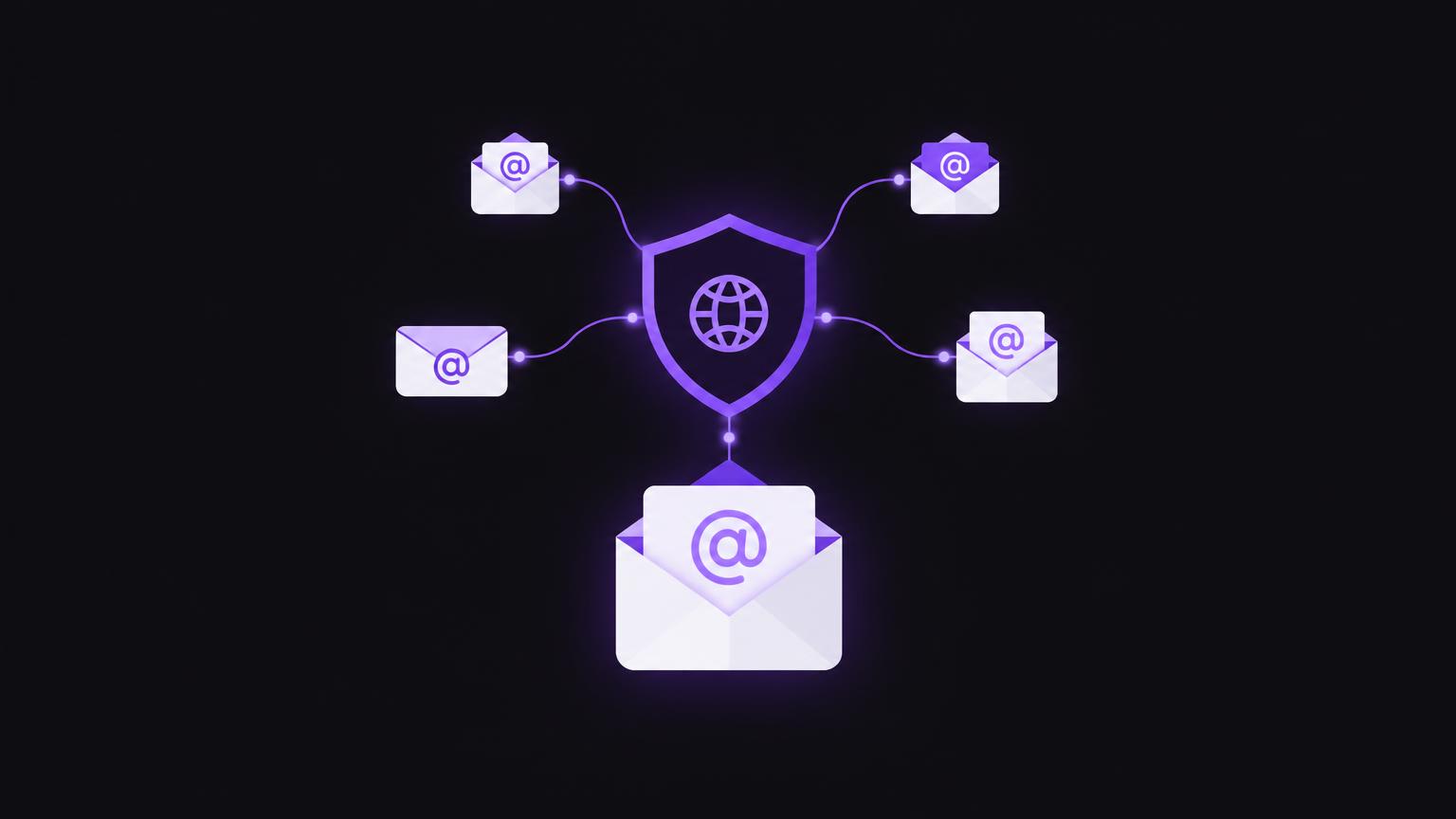
Business email with your own domain presents a clear identity and forms part of your company’s digital infrastructure. Your domain, website and mailbox are separate elements, even when they use the same domain.
Here you will learn how to plan providers and addresses, safely apply DNS requirements, protect access and account for existing mailboxes. Always take specific values from your provider’s current documentation.
Distinguishing domains, websites and mailboxes
Professional business email uses an address on your own domain, such as a personal address or info@. The domain is the part after the @ symbol. The mailbox provides the storage and access used to read and send messages. Your website is separate: it can be with a web provider while email is operated by a specialist provider.
Owning a domain does not create a mailbox. You need an email service, suitable DNS settings and configured access. Business email is a separate service from your website. Establish who manages the provider and domain, who receives invoices and security alerts, and who owns the accounts. A clear handover avoids dependence on individual employees.
Domain Name System records ensure that other mail servers can find the appropriate receiving service. Google Workspace describes MX setup as part of domain management and provides provider-specific steps. Google explains how to set up MX records; the specific values in your administration account are authoritative.
Choosing useful addresses and assigning responsibilities
Choose addresses according to their purpose and who will actually manage them. A general address such as info@ or kontakt@ suits enquiries if a team ensures they are handled. Personal addresses are useful when communication should be assigned to an individual. Decide who checks a general mailbox and how messages are handled during absences.
A mailbox has its own storage and login. Forwarding sends incoming messages to another address without necessarily providing a separately usable mailbox. Group addresses or shared mailboxes are further options, with behaviour depending on the provider and configured feature. Before choosing, check whether you can reply using your intended sender address and how access can be revoked.
Avoid addresses permanently tied only to one person’s private account. Instead, establish organisational ownership and appoint at least one responsible deputy. This protects business operations during staff changes and makes secure handover easier.
Choosing an email provider and obtaining values
Compare email providers against your requirements for mailboxes, administration, device access, support and existing software. Check your chosen provider’s official documentation before making DNS changes. Microsoft, for example, describes adding a custom domain to Microsoft 365 as a separate setup step. Microsoft Learn’s custom domain guidance is product-specific, not a general configuration for other services.
Your provider supplies the necessary DNS values. This applies to MX records and the additional information for sender authentication. These requirements can change and vary by provider and configuration. Do not copy sample values from older guides or another domain. Store the values and the time of the change in secure documentation.
MX, SPF, DKIM and DMARC explained clearly
MX records tell receiving mail servers where messages for your domain should be delivered. SPF is a policy in a DNS TXT record listing which systems may send email for the domain. DKIM adds a digital signature to outgoing messages, which receiving systems can check against a published key.
DMARC builds on the results of SPF and DKIM and lets a domain publish a policy for handling messages that fail authentication checks. Reports can help identify legitimate and unexpected sending sources. The policy depends on your sending services and intended approach. DMARC.org provides an introduction but does not replace your provider’s instructions.
Values need careful coordination, particularly when several systems send on behalf of your domain. These may include newsletter services, booking tools or website forms. List these senders first and have the relevant specialist check any adjustments. Do not blindly overwrite existing records, as several legitimate services may be affected.
| Term | Purpose | Who supplies the value? |
|---|---|---|
| MX | Routes incoming email to the receiving service | Email provider |
| SPF | Declares a domain’s authorised sending sources | Email provider and the person responsible for additional sending services |
| DKIM | Enables verification of a digital message signature | Email provider |
| DMARC | Defines how authentication failures are handled and can enable reporting | Domain managers together with the email provider or a specialist |
Setting up a mailbox and accessing it securely
First set up your domain and email service in their respective administration accounts. Verify the domain according to your provider’s instructions and add the specified records. Then create mailboxes and the addresses you need. Document who has administrative rights and grant only the permissions needed for each task.
Depending on your provider, you can use web access or supported email applications on your phone and computer. Follow the official login and synchronisation instructions. If you use several devices, check that messages, sent items and folders synchronise as expected. Enable multi-factor authentication where possible so that login requires an additional form of verification alongside your password.
Use long, unique passwords and store them in a trustworthy password manager. Do not share login details if your provider supports individual accounts or delegated access. Keep recovery methods up to date and limit administrative rights. When someone changes roles, remove access they no longer need promptly and securely.
Would you like business email set up with your own domain? [Enquire about business email](/kontakt).
Send a non - binding enquiryPlanning for existing mailboxes and the changeover
If you already use business email, establish before a changeover whether messages, calendars, contacts, archives and mobile devices need migrating. Switching providers is a separate project, not the same as changing one DNS record. Retain access to your previous service until receiving and sending have been tested on the new service and the necessary data has been transferred.
Changing MX records can change the route for incoming mail. An incomplete changeover can send messages to the wrong service or one that is no longer accessible. Plan responsibilities, timing, communication and fallback options with both the previous and new providers. Do not delete existing records before the new service has confirmed the required configuration.
If your domain is also used for a website, treat the website and email as separate checks. A website change should not unintentionally alter email delivery. For website connections, connecting a domain to your website explains the relevant DNS basics.
Checking sending, receiving and delivery problems
Test the setup in a controlled way
- Confirm the provider status
In the administration area, check that your domain and email service are verified and that the required DNS information appears as recognised.
- Send messages in both directions
Test sending to an external address and receiving from an independent mailbox. Also check replies and your chosen sender address.
Business email checklist
Tick items off · local only, not saved
0 of 8 items completed
If you have delivery problems, first check that your domain and mailbox are set up correctly and that DNS values are current and entered on the responsible nameservers. Check whether messages bounce back as undeliverable or land in the spam folder. Missing authentication, an incorrectly formatted record or unauthorised sending services may play a part. Do not change several values at once, so the cause remains traceable.
Even after a successful test, regularly check that mailboxes are accessible and that your provider’s security alerts are acted on. New external services sending on behalf of the domain must be accounted for in authentication. Expert support is worthwhile in complex existing environments. Enquire about business email or learn about the business email service.
A simplified view of a message’s journey
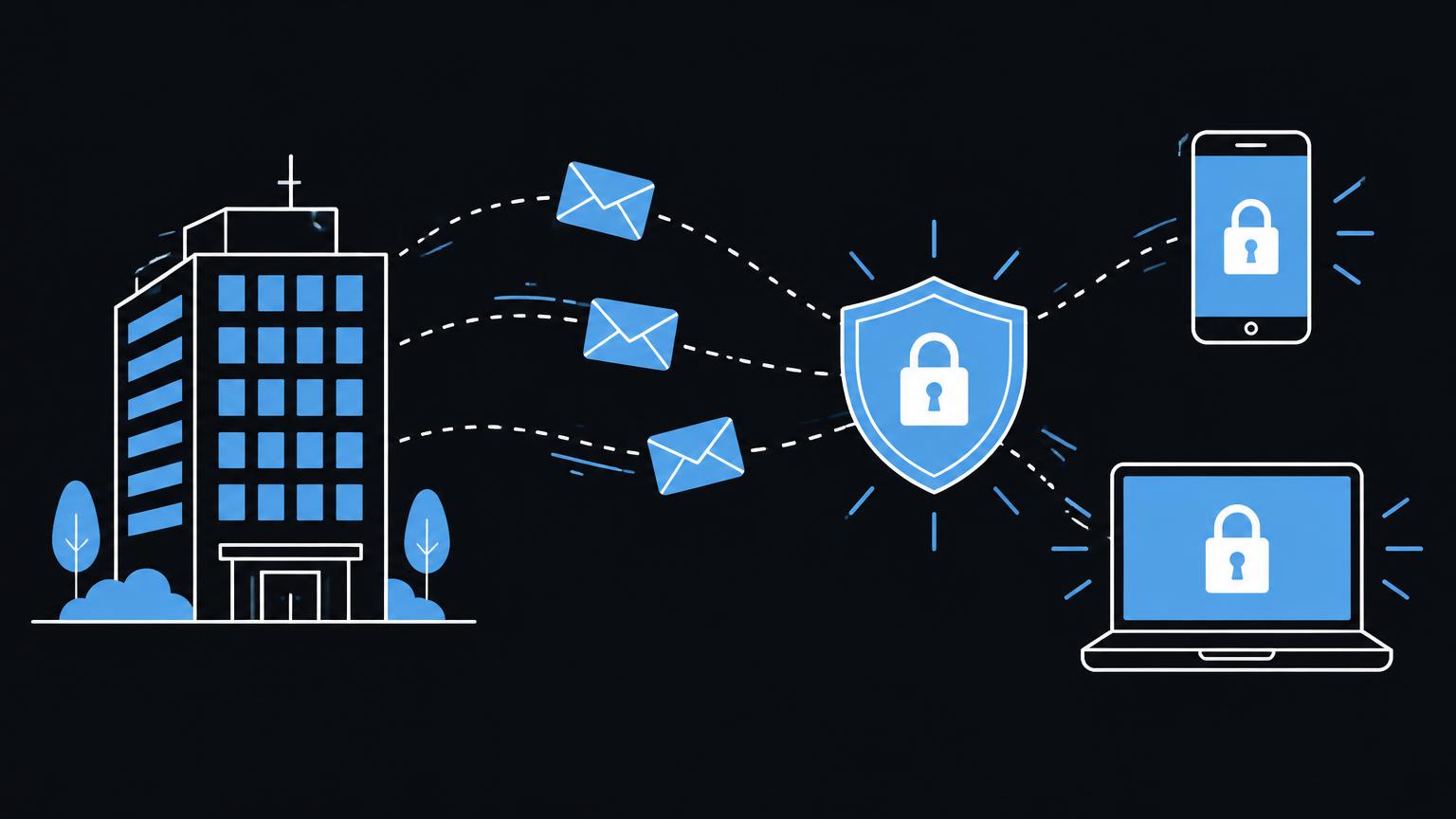
The diagram places the steps from the domain name through DNS to the email provider and mailbox in context. When a message is sent, the receiving side also checks available authentication information. The diagram is a learning model and does not show specific provider values or a complete technical configuration.
Remember that DNS, mail servers and mailboxes perform different tasks. Successful domain verification alone does not prove that all mailboxes, mobile access and sending sources are configured correctly. Testing in both directions and clear responsibility therefore belong in the handover.
Summary
- Business email is a separate service and is not automatically part of a website.
- MX controls receiving; SPF, DKIM and DMARC support email authentication.
- Always obtain DNS values directly from your chosen provider.
- List existing mailboxes and sending services before a changeover.
- Secure access, testing and a clear handover are part of setup.
Frequently asked questions
Can I run business email without a website?
Yes. Your domain, email service and website are separate and can be with different providers. Email requires the appropriate DNS information to be configured with the responsible DNS service.
What is the difference between a mailbox and forwarding?
A mailbox provides its own storage and login. Forwarding sends messages to another address; the available options and reply capabilities depend on your provider.
Which MX values do I need to enter?
Obtain the correct values directly from your email service provider. Do not use example values, as they vary by provider and configuration.
What are SPF, DKIM and DMARC for?
They help receiving systems assess whether messages from your domain are authorised and authentic. These mechanisms must be configured to match the sending services you actually use.
How do I protect access to business email?
Use strong, unique passwords, enable multi-factor authentication where available, and provide personal accounts with suitable roles. Restrict and review administrative rights.
What should I consider with existing mailboxes?
Document existing mailboxes, forwarding arrangements, data and sending services. Plan migration separately from the DNS change and test sending and receiving before completion.
Sources
- Set up MX records for Google Workspace | Domain management | Google Workspace HelpGoogle Workspace · checked on 2026 - 11 - 05
- Add a Custom Domain to Microsoft 365 - Microsoft 365 admin | Microsoft Learn Microsoft · checked on 2026 - 11 - 05
- Overview, dmarc.orgDMARC.org · checked on 2026 - 11 - 05
Back to the top of the article