Additional services · Additional services
Professional business email: what are the benefits of your own domain?
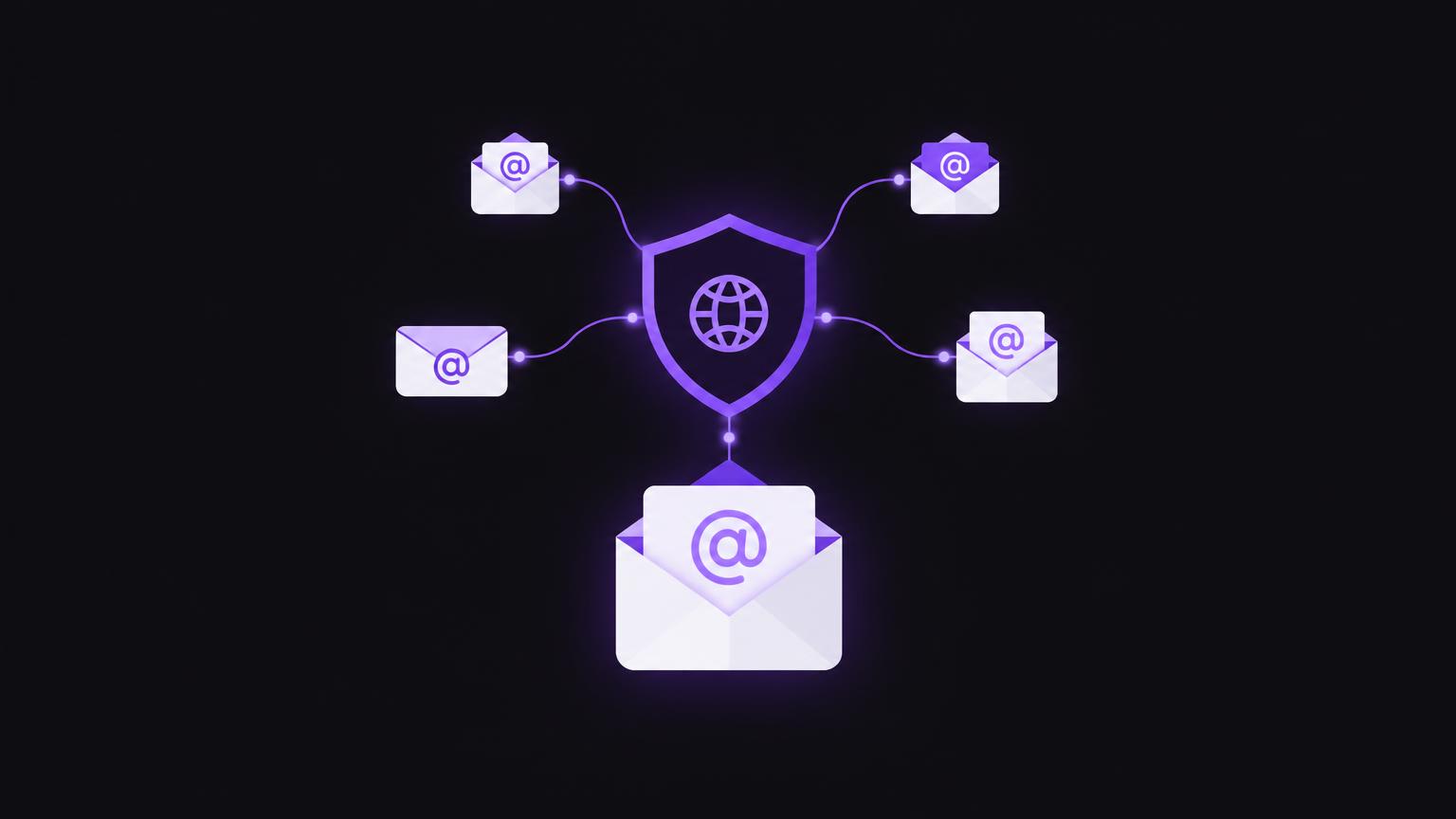
An address such as name@beispiel.ch connects the individual sender with your business name. It forms part of your identity and creates a consistent address for your website, quotations and customer communication. However, your own domain alone does not create trust or good deliverability. These require suitable mailboxes, clear responsibilities and careful technical configuration.
This overview explains the benefits business email can offer and the organisational questions involved. The right solution depends on your team size, working practices and required features. Check provider terms, ongoing fees and retention requirements before implementation.
A consistent identity and recognisable senders
Your own domain enables addresses that match your business name. This makes it easier for recipients to recognise the sender, particularly when the address also appears on your website, in quotations and on business documents. It is one element of a consistent identity, but not proof that every individual message is genuine. Recipients should remain cautious with links, attachments and unexpected payment requests.
Establish a clear naming convention. Personal addresses can use first names and surnames; general addresses such as info@ or kontakt@ are suitable for central enquiries. Consistent spelling reduces confusion and makes responsibilities easier to hand over. Avoid creating unnecessary variations that nobody monitors regularly.
The address remains under your domain, but the email service itself is generally run by a provider. Check who owns the domain and who has administrative rights to the email account. When staff change, the organisation should not lose track of central mailboxes, forwarding rules or recovery options. Personal accounts belong to individual people and should not be used as shared logins.
General addresses, mailboxes and forwarding
A general address can be set up as a separate mailbox with its own login, storage and administration. Forwarding, by contrast, sends incoming messages to another destination and does not automatically provide a separate inbox. Some providers also offer groups or shared mailboxes that allow several authorised people to handle messages. The precise functionality and billing depend on the provider.
Choose the arrangement to suit your workflow. If several people answer incoming enquiries, it must be clear who has responded and what remains outstanding. Simple forwarding may suffice where one person is responsible, but may not provide a shared history or clear allocation of tasks. Before implementation, check permissions, how replies work, absence arrangements and the ability to revoke access later.
| Address type | Possible purpose | Access |
|---|---|---|
| Personal address | Direct communication with one person | Individual account |
| General mailbox | Central enquiries and information | Individual access or a defined group |
| Shared mailbox | A team handles the same message history | Several authorised people |
| Forwarding | Deliver messages to an existing destination | Destination account; no separate mailbox required |
Authentication and deliverability
DNS authentication records help receiving mail servers assess where messages come from. SPF identifies permitted sending services. It is important to include every legitimate system sending on behalf of the domain, such as your email platform, newsletter service or website form. An incomplete or contradictory policy can affect legitimate messages.
DKIM adds a signature to outgoing messages that the receiving server can check using a public key. The key is typically published through a DNS record. DMARC uses SPF and DKIM results and alignment with the visible sender domain to enable rules for failed checks. These records must match the actual sending configuration and should not be copied from an arbitrary template.
Correct authentication supports message assessment but does not guarantee delivery to the inbox. Recipients, reputation, content, recipient lists and technical circumstances also play a role. Check new sending routes against the relevant providers' instructions and monitor feedback. Adding another platform may require adjusting the existing configuration rather than simply creating a second SPF policy.
Security, multi - factor authentication and backups
Email accounts often contain correspondence, documents and references to other systems. Use strong, unique passwords for administrative and personal accounts. Enable multi-factor authentication where it is offered. This adds a second form of verification alongside the password and makes unauthorised access harder if a password becomes known. Also protect recovery addresses and devices used to sign in.
Grant only the permissions needed for each task. When someone leaves the business or changes roles, review email access, forwarding rules, delegations and recovery details. Decide whether messages should be handed over to a responsible colleague or accounts deactivated. These processes should be defined internally; they do not replace an individual assessment of legal or contractual obligations.
Archiving and backups are not automatically the same thing. An archive may support orderly retention, while a backup should enable recovery after loss or user error. The available options depend on the provider and chosen plan. Establish retention periods, export options, recovery procedures and responsibilities before relying on a feature. Review these requirements regularly and document the process.
Signing in with a second factor does not protect against every risk or replace secure administration. Check how recovery works, who receives emergency access and whether a central administration role exists. If several people share login details, it is often difficult to establish who changed a setting. Individual accounts and documented permissions make administration and controlled access revocation easier.
Enquire about a business email solution that suits your addresses and workflows.
Send a non - binding enquiryWebsite forms and separating business communication
A website form can send messages to a business address. The sending service, sender details and reply-to address must work together. The visible reply-to address should normally point to an address where the person enquiring can be reached, while the technical sender follows the sending service's requirements. An incorrectly configured sender address can cause delivery problems or direct replies to an unsuitable destination.
After making changes, test the entire process: submit the form, check receipt, write a reply and check any confirmation. Ensure notifications do not reach only one individual when several roles are involved. Forms may contain sensitive information, so decide who has access and how enquiries will be handled. Before implementation, check content, recipients, retention and the technical configuration.
Separate business email helps keep private and business communication apart. It makes tasks easier to hand over and keeps company correspondence better organised when roles change. This requires clear rules and central administration. Personal accounts should not be shared with private addresses. When staff change, the domain remains the business's responsibility, while personal access is handed over or deactivated in a controlled way.
Ongoing administration and making an informed choice
Business email may incur ongoing fees for user accounts or additional services. Charges and included features vary by provider and plan, so check specific costs directly with the provider. Alongside monthly operation, allow for setup, migration, training and administration time. A seemingly simple start can bring additional organisational tasks as your team grows.
Do not compare storage alone. Multi-factor authentication, administration of shared addresses, export and recovery, spam filtering, support and handling former employees' accounts also matter. Ask which settings you can manage yourself and what assistance is available. This helps you choose a solution suited to your actual workflow without treating unused features as essential.
Step - by - step checklist before setup
- Clarify domain ownership and responsibility for account access.
- Define a naming convention for personal and general addresses.
- Distinguish between a mailbox, shared access and forwarding.
- Coordinate SPF, DKIM and DMARC according to provider requirements.
- Define multi-factor authentication and roles.
- Test website forms, the reply-to address and the sending route.
- Check archiving, backups, export and ongoing provider fees.
If you want to set up business email or organise existing addresses, you can discuss a suitable business email solution. For new websites, coordinating the domain, forms and email sending can also form part of the planning.
Consider the timing of a changeover too. If important contact addresses change, update your website, signatures, document templates and external profiles consistently. Do not automatically keep old addresses active indefinitely; establish whether forwarding is needed and for how long. Agree responsibility, duration and handling of incoming messages before making the change.
Summary
- Your own domain creates consistent, recognisable sender addresses.
- General addresses, personal mailboxes and forwarding serve different purposes.
- SPF, DKIM and DMARC must match the actual sending configuration.
- Multi-factor authentication and clear roles help protect accounts and access.
- Archiving and backups are different tasks.
- Check plans, features and ongoing fees with the provider.
Frequently asked questions
Does a business address automatically appear trustworthy?
No. It supports a consistent, recognisable identity but does not prove that a message is genuine. Technical authentication and careful behaviour remain important.
Are forwarding and a mailbox the same thing?
No. Forwarding sends messages to another destination. A mailbox typically provides its own inbox and login.
What are SPF, DKIM and DMARC for?
They help check whether messages may be sent on behalf of a domain and how recipients should handle certain failures.
Do these records guarantee good deliverability?
No. They are important technical foundations, but do not guarantee inbox delivery.
What happens to business email when staff change?
Review personal accounts, forwarding rules and shared mailboxes, revoke permissions that are no longer needed and arrange the handover of central communication.
Are archiving and backups identical?
No. Archiving typically supports orderly retention; a backup should enable recovery. Available features depend on the provider.
Sources
- Set up SPFGoogle Workspace · checked on 2026 - 11 - 05
- Set up DKIMGoogle Workspace · checked on 2026 - 11 - 05
- Set up DMARCGoogle Workspace · checked on 2026 - 11 - 05
- Turn on 2 - Step Verification Google Workspace · checked on 2026 - 11 - 05
Back to the top of the article