Guides and tutorials · Guides and tutorials
Maintaining website content yourself: what to consider
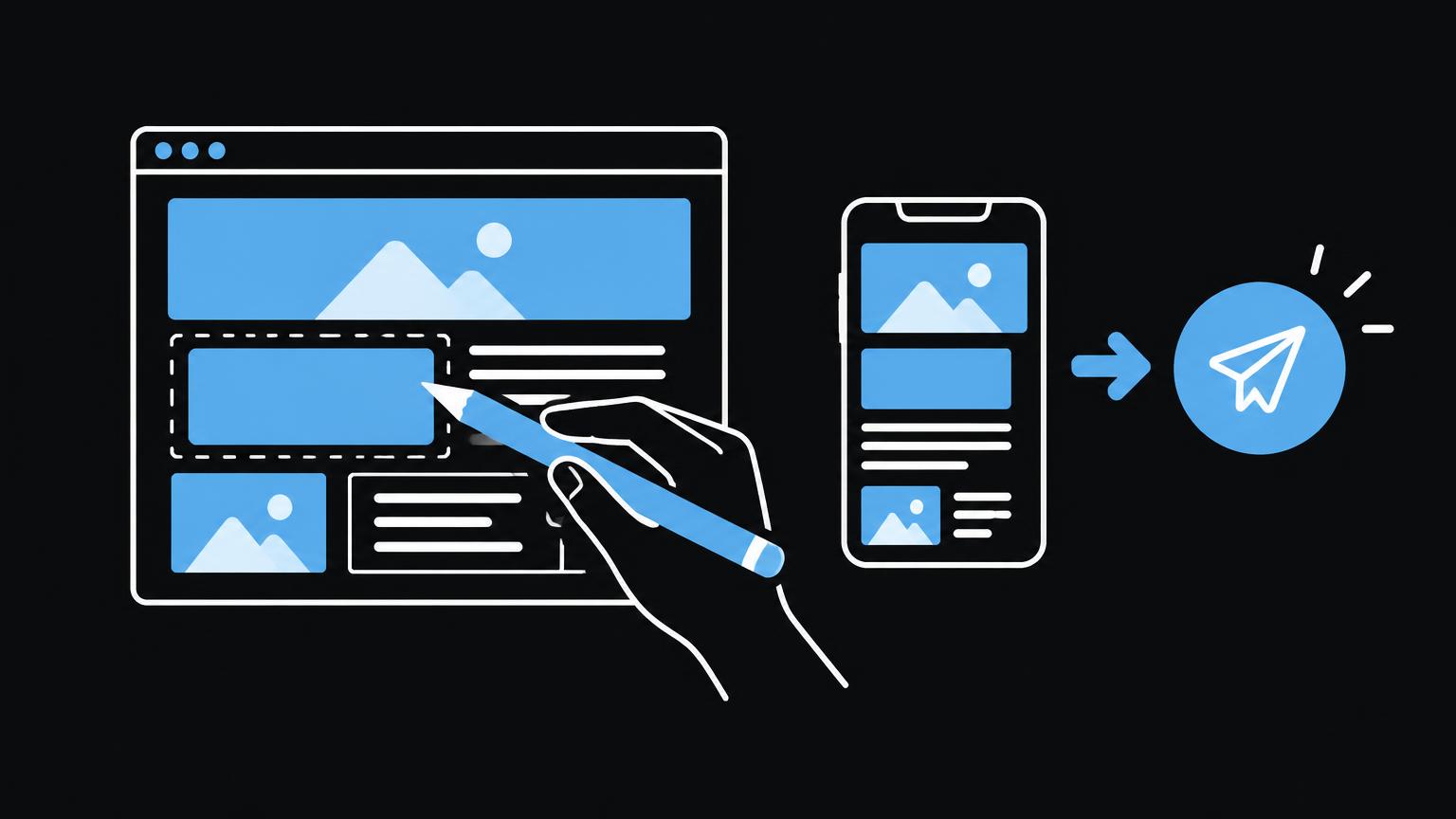
You can keep much of your website content up to date yourself when responsibilities and processes are clear. Careful checks before publication help you avoid common editorial mistakes.
This guide shows you what to consider when working with copy, images, new pages, products and navigation. You will also learn when training or technical support is worthwhile.
What you can safely change yourself
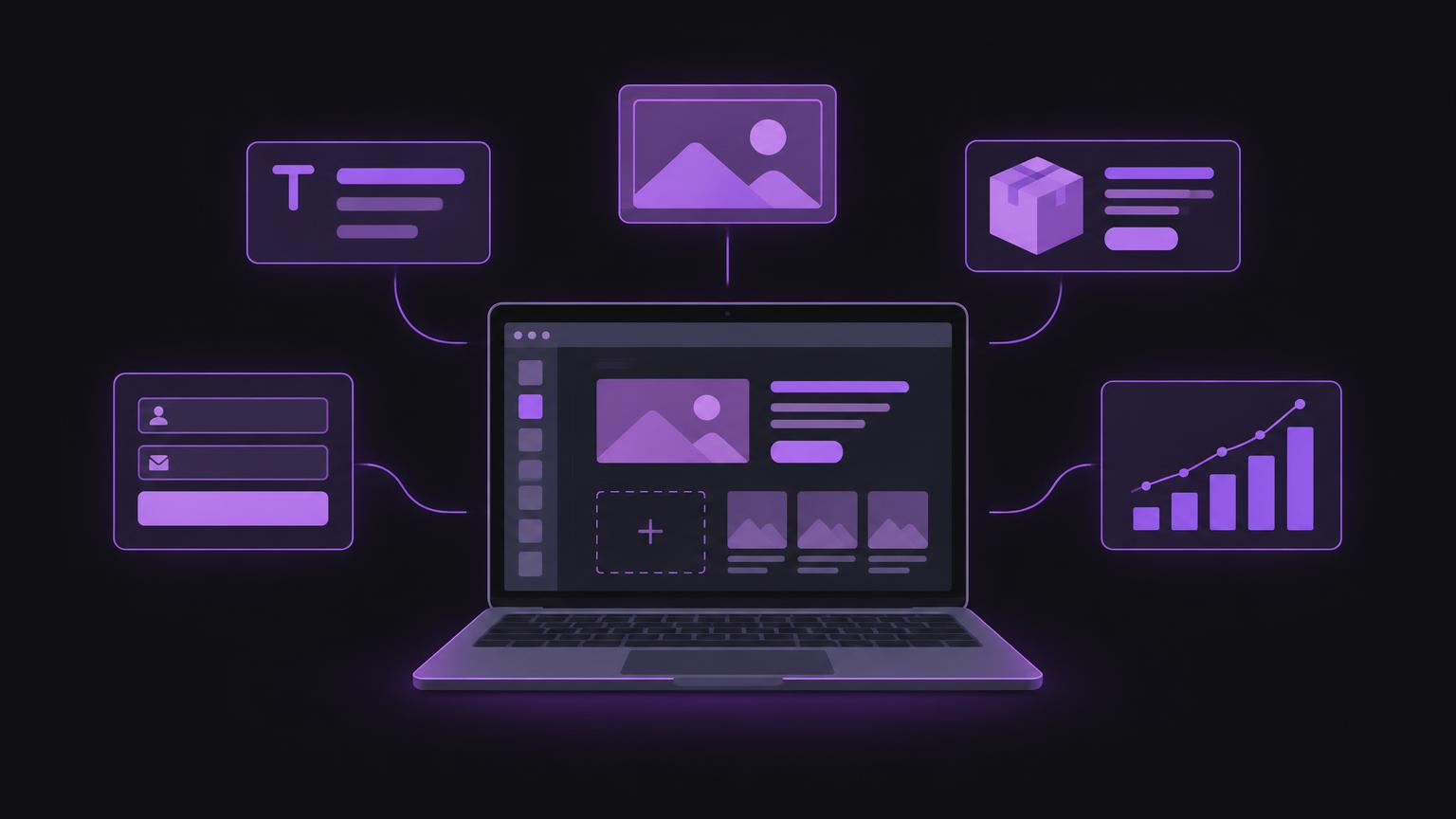
Many websites can be updated through their content management system without programming. This includes correcting copy, updating opening hours, adding blog posts or changing product information. What matters is knowing which areas you may edit and which changes can have site-wide effects. An adjustment to one page needs to be assessed differently from a change to shared templates or settings.
During handover, establish how to log in, where drafts are stored and who approves changes. Personal accounts are preferable to shared logins. Grant only the permissions needed for each task and remove access when responsibilities change. Login details do not belong in public documents or unprotected messages.
Also ask how backup and restoration are organised. A backup is only useful if it is available and the process is understood. For important changes, record the date, affected page and responsible person. This makes it possible to trace what was changed later.
Before editing, define what counts as complete. For a text correction, checking the changed paragraph and its presentation may be enough. For a new page, this also includes the page title, headings, links and position in the menu. A brief task description prevents other areas from being changed unnoticed during the work.
Use a preview if your system offers one. A draft and published page can differ, for example where shared templates or dynamic content are involved. Check that your change really affects only the intended area. If you are unsure, ask before saving rather than experimenting with a global setting.
Copy, new pages and blog articles
Check that copy is current, understandable and has a clear purpose. A new page should answer a specific question and have a suitable place within the website. Avoid duplicate pages that express the same content in slightly different words. For blog articles, a descriptive title, logically organised sections and a useful connection to existing services all help.
Headings structure content for people and assistive technologies. Use a clear main heading with sensibly graduated subheadings underneath. Font size alone does not create semantic structure. Do not change heading levels purely for visual reasons. After saving, check that the page is still organised clearly.
Links should make their destination clear. Check internal links after renaming or removing a page. Check that external destinations are accessible and relevant. A new page needs a sensible place in the navigation or suitable internal links so people can find it.
For a blog article, a brief editorial process is worthwhile: clarify the subject and audience, structure the content, read the draft and only then approve it. An article should provide clear value and link to relevant pages where appropriate. Also check the date, author credit and preview image if your system uses these fields. Do not publish unfinished placeholders.
When creating a page, consider its life cycle. Decide who will keep it up to date and what happens when information becomes outdated. A descriptive page title helps visitors find their way; a clear sequence of headings makes scanning easier. Link to the new page in an appropriate place rather than simply creating it and hoping it will be found.
Products, images and search appearance
Product titles, descriptions, variants and images must be consistent. Make sure information is current and no placeholders remain visible. Changes can affect categories, filters or existing links. Check the complete product page in the preview.
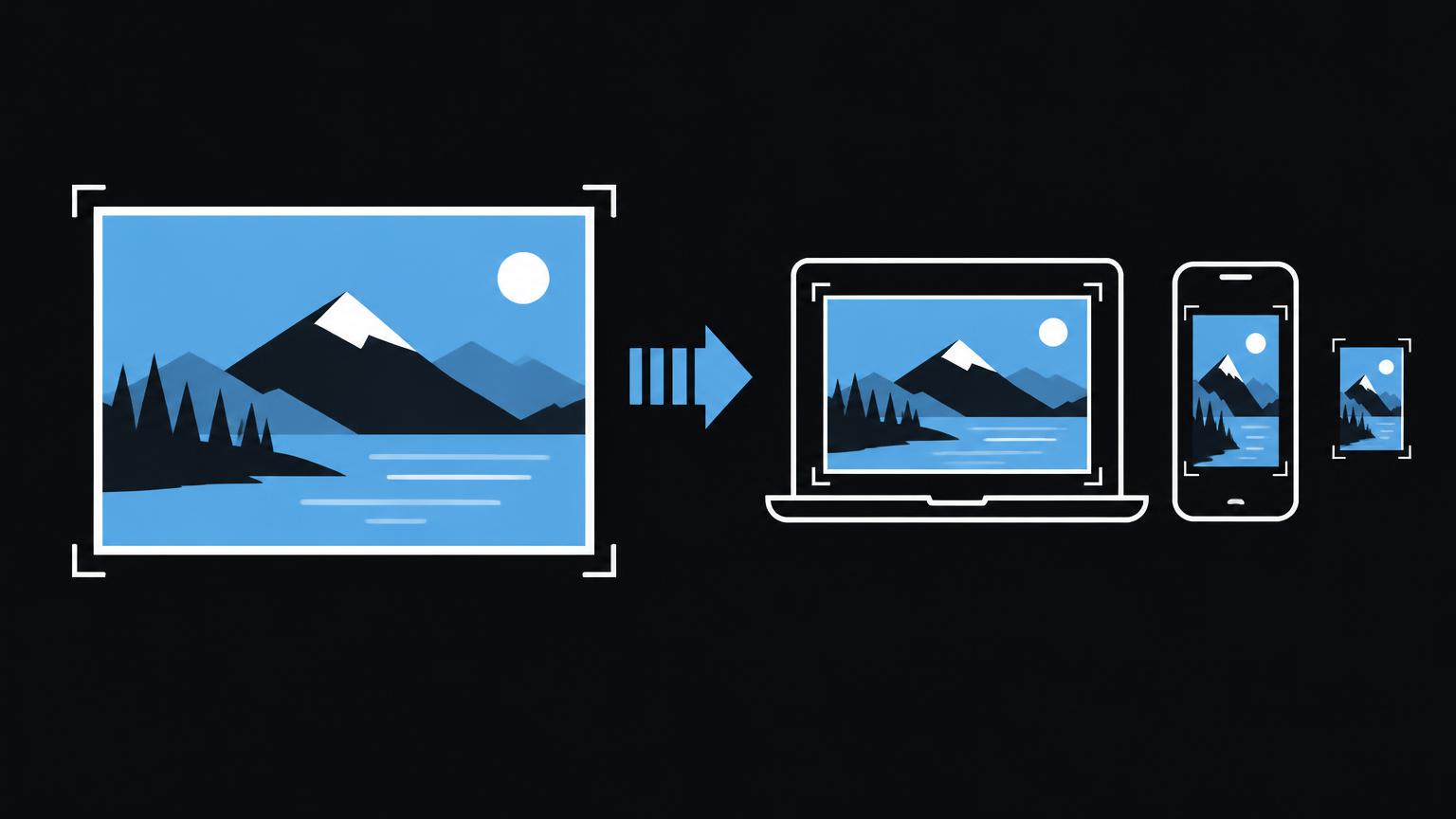
Use images only when the necessary usage rights are clear. An image found through a search engine is not automatically free to use. Choose suitable dimensions and crops; important subjects can be lost in narrow layouts. Alternative text describes an image’s purpose or essential content where this is not already conveyed in the text. Decorative images often do not need a detailed description.
SEO titles and meta descriptions should describe each page concisely and individually. Avoid artificial repetition and promises the page content does not fulfil. Search engines may change the presentation and wording. Well-maintained metadata does not guarantee a particular display.
| Change | Check before publication | Common source of errors |
|---|---|---|
| Text correction | Readability, accuracy and formatting | Formatting copied from a text document |
| New page or blog article | Navigation, headings and internal links | Page remains hard to find or duplicates content |
| Replacing an image | Rights, crop, alternative text and mobile view | Unsuitable size or missing context |
| Product information | Variants, description and availability | Placeholders or contradictory information |
| Changing navigation | Destinations, order and mobile menu | An important area becomes difficult to reach |
When changing products, cross-check all related information. A changed product name should not sit alongside a contradictory description or outdated image. Check variants and availability in their intended context and whether the change also appears in overviews or categories. Questions about prices or binding product information should be clarified internally with the responsible team.
Navigation and mobile view
Navigation should make important areas easy to find. Long labels, many menu items or nested levels can make it harder to use. After every change, check that key pages remain accessible and the order is understandable.
The mobile view differs from desktop in width and interaction. Check readability, image crops and access to important buttons. Make sure content is not cut off and menus remain easy to use. A change that looks balanced on a large screen may appear differently on a phone.
Preview the whole page, not just the changed paragraph. Check forms, product variants and linked content if they could be affected by the edit. After publication, check the actual page again.
Enquire about website training if you would like to maintain content safely and independently.
Send a non - binding enquiryDrafts, approval and documentation
Where possible, start in draft mode. Read all the content in the preview and check spelling, links, images, headings and, where relevant, product data. Obtain approval where content is business-critical or several people share responsibility.
Simple documentation can include the date, page, change and responsible person. It helps trace decisions and narrow down errors. Avoid changing global templates when only one paragraph needs updating. Establish how to undo an incorrect change.
Tracking must only take place with consent. Reviewing content does not automatically require additional data collection. Involve the responsible support team if you have questions about roles, login details or restoration.
A four - step process
- Prepare
Clarify the goal, responsibilities and affected area before making changes.
- Implement
Edit only the necessary content and use the intended settings.
- Check
Carefully review the preview, links, readability and mobile presentation.
- Approve
Publish only after the necessary checks and record your changes.
Keep documentation brief and useful. Note what changed, where it is visible and whether approval has been given. This lets you focus on the affected area if questions arise. Do not store unnecessary personal information in these notes, and keep login details separate and protected.
When support or training is worthwhile
Get support when a change affects global templates, technical settings, redirects or website functionality. Recurring display errors, unclear permissions and the lack of a backup routine are further reasons to clarify responsibilities first. Plan larger changes so existing entry points are not unintentionally affected.
Training should focus on your actual tasks: editing content, adding images, managing drafts and organising approvals. Ask for a clear handover of relevant access and processes. Website training can help you carry out recurring editorial tasks independently; it does not replace technical support for system changes. Website training
Checklist before completion
Tick items off · local only, not saved
0 of 6 items completed
Summary
- Plan changes to suit their intended purpose.
- Check content, presentation and links before publication.
- Consider mobile devices and accessibility.
- Clarify rights, responsibilities and technical limits.
Frequently asked questions
Can I change website copy myself?
Many content management systems allow text changes without programming. First establish which areas you may edit and check changes in the preview.
Should I publish changes straight away?
Use a draft where possible and check all the content before publication. Afterwards, check the public page again.
How often should I review content?
That depends on how quickly the information changes. For time-sensitive information, appoint a responsible person and schedule recurring reviews.
How do I write alternative text?
Briefly describe the image’s purpose or relevant message in its context. Avoid repetition and keyword lists.
Do I need to create a backup?
Establish how the website is backed up, who is responsible and how restoration works. A backup does not replace checks before publication.
When is training worthwhile?
Training is useful when several people maintain content or processes and permissions are unclear. It can focus on your team’s tasks.
Sources
Back to the top of the article